Here are some tips for adding content to your course pages.
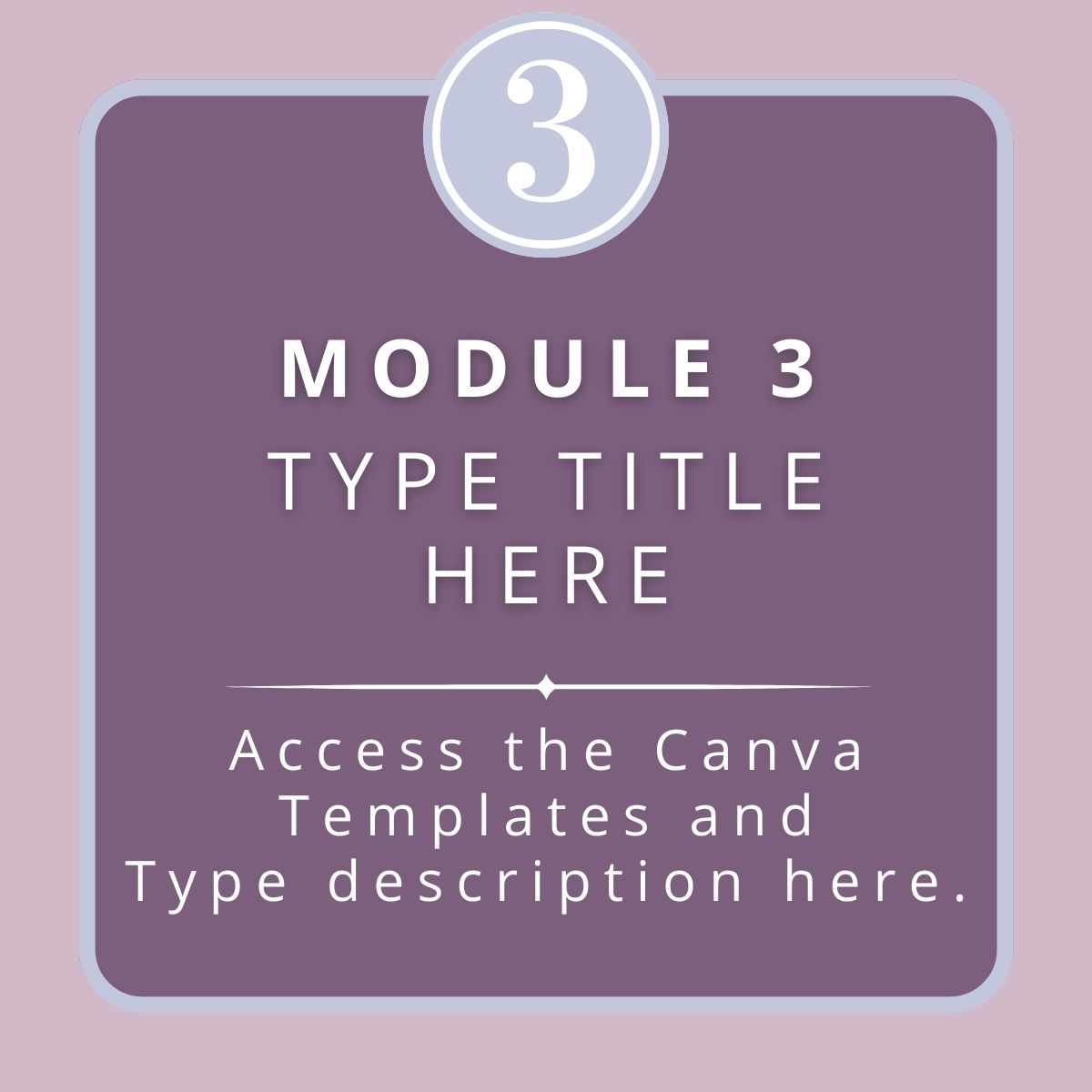
To edit the course thumbnail above, refer to your Canva templates, in the Course Graphics section on the sidebar to the left (via your course dashboard.) Once you've edited your graphic and downloaded it to your computer, you can simply click on the existing graphic and look for a little left and right arrow icon. Clicking on that will allow you to swap out the graphics.
If you delete the image by accident, you can upload a fresh copy by putting your cursor in a content block. When you do, a + sign will be displayed. Click on that plus sign and then on the image icon, to search for an image on your computer.
Important Tip: In order for course graphics to show up on your Course Overview page, you need to upload your lesson banners to one of the top two sections on this page (via the course editor dashboard.) Pick one of these sections to add your image to, then be consistent when adding Course Banners to each page of your course.
Play and experiment to get comfortable with how things work here on Teachery.

Write the Lesson Title Here
Introduce the lesson here and provide text for whatever you'd like your students to know on this topic.
You can make edits to this content, from
the text editor dashboard for this course.
If you'd like, you can customize the section divider graphics on this page. Refer to the Course Graphics Section, on the left sidebar (of your course editor dashboard.)
You can make edits to this content, from
the text editor dashboard for this course.
If you'd like, you can customize the section divider graphics on this page. Refer to the Course Graphics Section, on the left sidebar (of your course editor dashboard.)
To change the font size, color, or attributes, highlight the text you'd like to change. In the pop-up menu click on the "A" (which is the text editing section.) You can then choose from a variety of options. Play around and get familiar with what's available to you.

Offering handouts is a great way to reinforce what you are teaching. They can also help students to stay engaged.
To upload a handout (of up to 10MB in size, per file) type the name of the handout and then highlight it with your mouse. When you do, you'll see a + sign in the pop-up menu. From that menu you'll see what looks like a piece of paper. Click on that to choose a file from your computer to upload.
By doing that, the title of the handout you previously typed, will change to the name of the file you uploaded. Simply highlight that text (the name of the file) and you'll see a pencil icon (the edit icon) pop up. Click on that. Then click into the "title" field. In that field, type the text you'd like people to see, for the name of that handout.
To add a hyperlink to text or images, highlight the text or image you want hyperlinked. Then click on the + sign in the pop-up menu. You'll find a paperclip icon, which is the hyperlink icon. Type in the URL and click on the "insert" text.
When adding hyperlinks, you'll want to test them to make sure they lead to where you want them to go. Preview your page and click on the link to test it.
If you'd like, you can customize the section divider graphics on this page. Refer to the Course Graphics section, from your course dashboard.
To upload a handout (of up to 10MB in size, per file) type the name of the handout and then highlight it with your mouse. When you do, you'll see a + sign in the pop-up menu. From that menu you'll see what looks like a piece of paper. Click on that to choose a file from your computer to upload.
By doing that, the title of the handout you previously typed, will change to the name of the file you uploaded. Simply highlight that text (the name of the file) and you'll see a pencil icon (the edit icon) pop up. Click on that. Then click into the "title" field. In that field, type the text you'd like people to see, for the name of that handout.
To add a hyperlink to text or images, highlight the text or image you want hyperlinked. Then click on the + sign in the pop-up menu. You'll find a paperclip icon, which is the hyperlink icon. Type in the URL and click on the "insert" text.
When adding hyperlinks, you'll want to test them to make sure they lead to where you want them to go. Preview your page and click on the link to test it.
If you'd like, you can customize the section divider graphics on this page. Refer to the Course Graphics section, from your course dashboard.

To add a video to your lesson, you can scroll down and click the "Add Content Block" button. You'll see an option to "Add Embed Code." Choose that option.
Then go to where you are hosting your videos (YouTube or Vimeo for example) and copy the "embed" code. That's the code you want to paste into the Add Embed Code content block.
If you'd like, you can customize the section divider graphics on this page. For your course graphics templates, refer to the Course Graphics Section on the left sidebar, via your course dashboard.
Then go to where you are hosting your videos (YouTube or Vimeo for example) and copy the "embed" code. That's the code you want to paste into the Add Embed Code content block.
If you'd like, you can customize the section divider graphics on this page. For your course graphics templates, refer to the Course Graphics Section on the left sidebar, via your course dashboard.

Providing action steps is a great way to help your students benefit from what they are learning. It also keeps them engaged and helps them retain information.
When it comes to action steps, less is more. Consider asking students to complete 1-3 tasks, based on what you most want them to walk away with from this lesson.
You may also want to provide action steps in PDF format, so they can print them out and keep the tasks at top of mind. Seeing their action steps pages can remind them to come back to the course to continue learning.
Be sure to include the URL to your course login page, so your students can easily find it.
When it comes to action steps, less is more. Consider asking students to complete 1-3 tasks, based on what you most want them to walk away with from this lesson.
You may also want to provide action steps in PDF format, so they can print them out and keep the tasks at top of mind. Seeing their action steps pages can remind them to come back to the course to continue learning.
Be sure to include the URL to your course login page, so your students can easily find it.